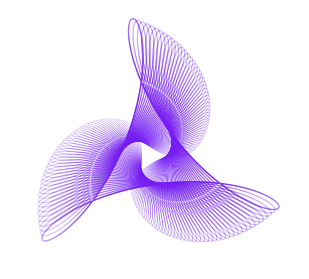
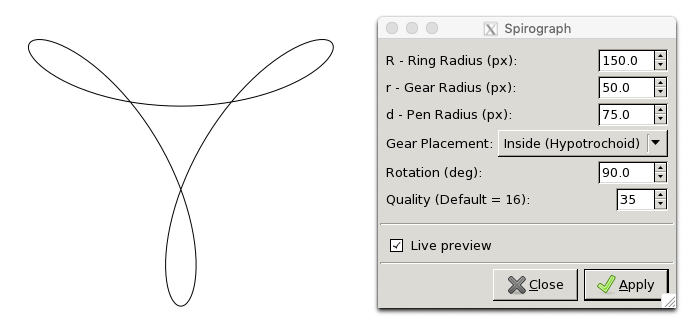
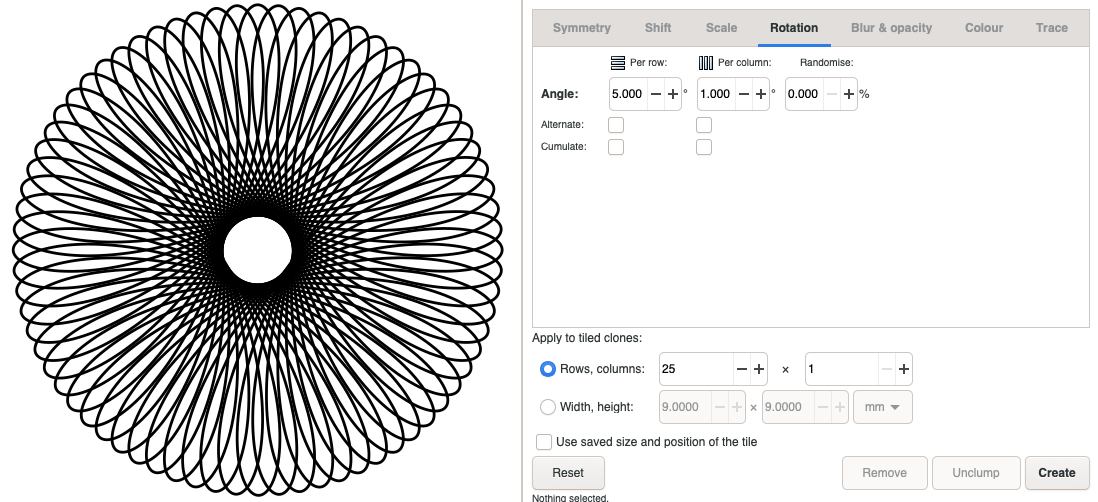
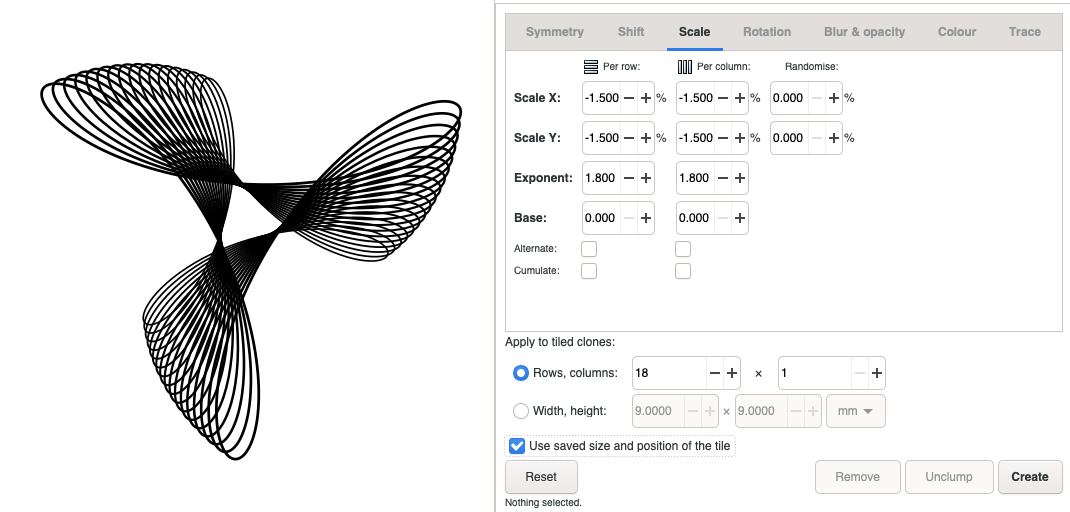
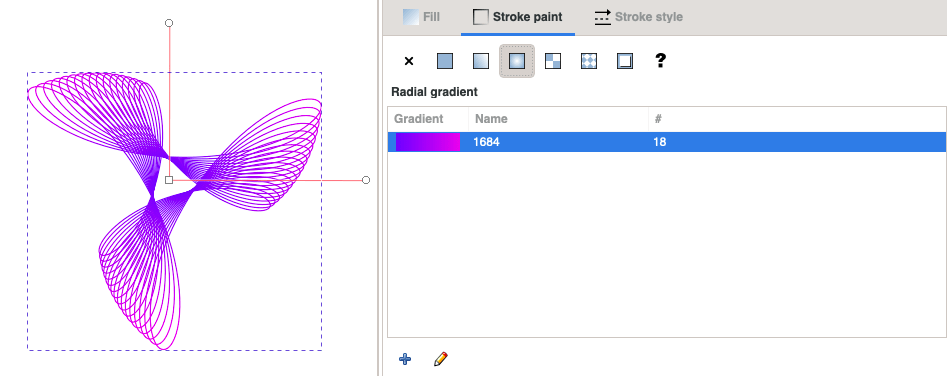
The possibilities of spirographs are endless. However, they are mathematically quite complex to understand and some degree of understanding is necessary in order to enter the right coordinates during the design process. As a first step, it’s wise to discover how they work on a spirograph generating website. An easy website to experiment on is
SeedCode. When you choose the
mandala version and use a single
rotor, it will create relatively simple spirograph shapes for you. By adjusting the radius of the different elements, the results that are created can change drastically.
Playing around with this for some time starts to give you a sense of how it works. Another website where you can find several examples of spirographs and see the mathematical details that created them is
JW’s Pictures and Patterns. After adjusting the
wheel size and
wheel rate, you can choose the
overlay and
evolve options to see several (often amazing) variations of that pattern. Ideally, after this phase of experimenting, you now have a clear image in your head of what the spirograph you wish to create looks like. The next challenge is to identify the right input to create that pattern.